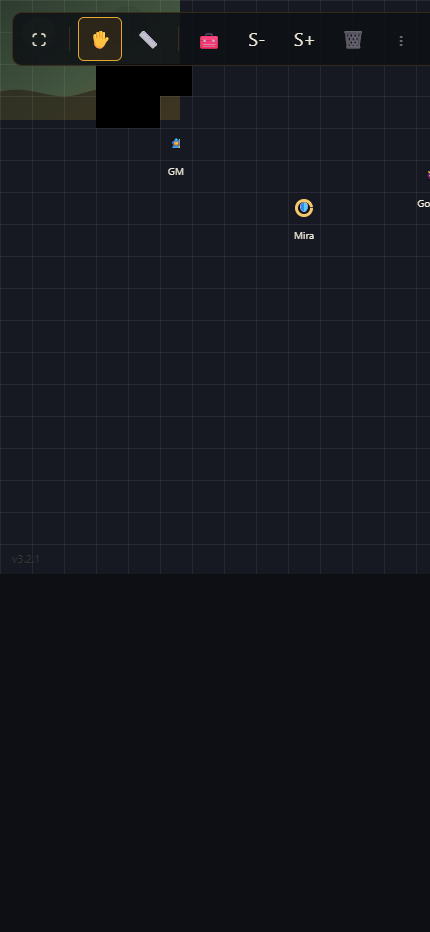
Happy Game Night — Getting Started
Guide for app version 3.2.1Google Drive · Windows installer
Install (Game Master, Windows)
Only the Game Master installs anything. Players just need a browser.
- Click the download button above to open the Google Drive folder. You will find both Windows (
.exe) and Mac (.dmg) installers there. - Download and run the installer for your system — no admin rights required.
- Launch Happy Game Night from your desktop, Start Menu, or Applications folder.
Start a session (Game Master)
Get a room open and invite your table in under a minute.
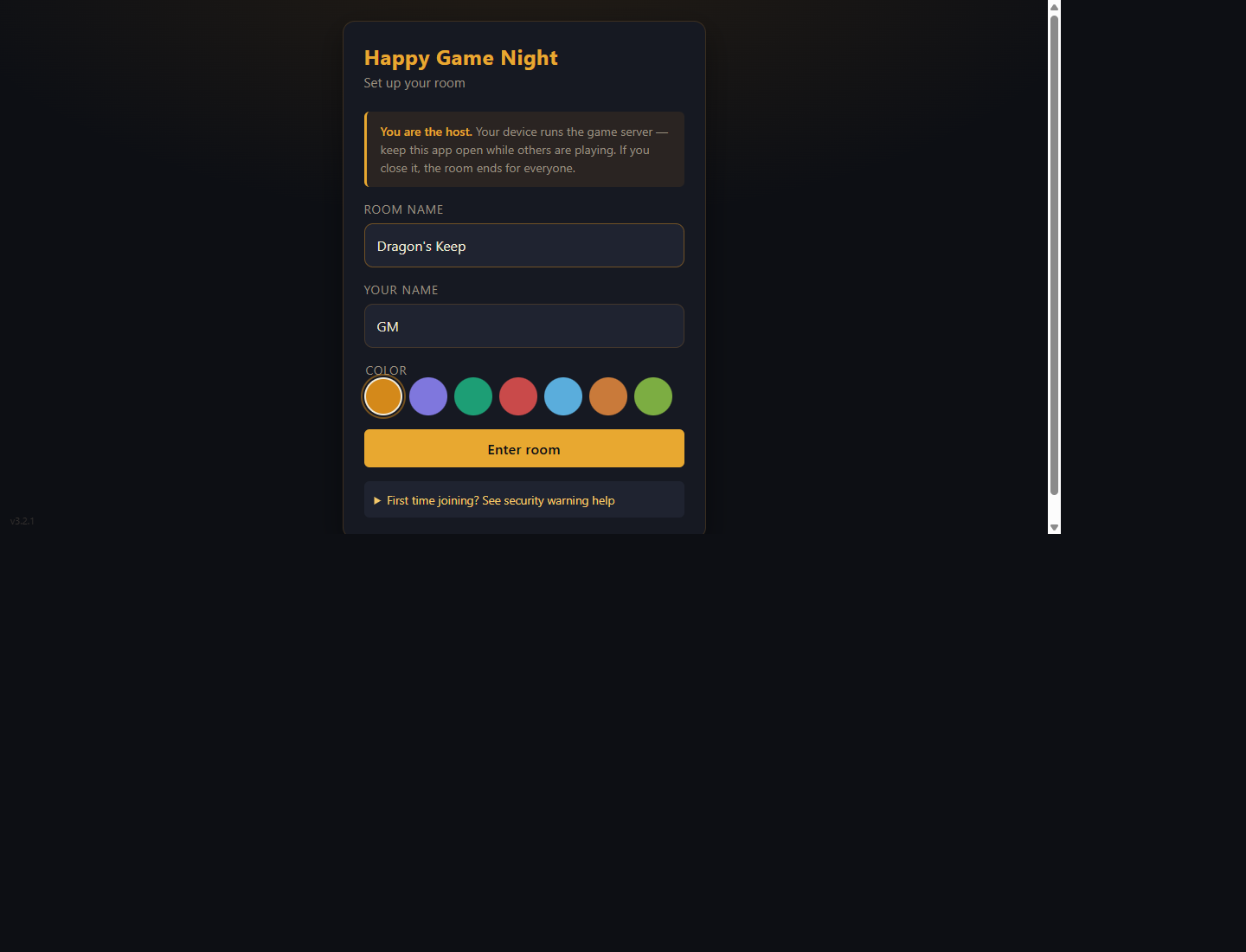
- Open the app and click Create Session; enter your GM name.
- Optionally name your room (e.g. Dragon’s Keep) — otherwise the session is identified by a 4-letter code.
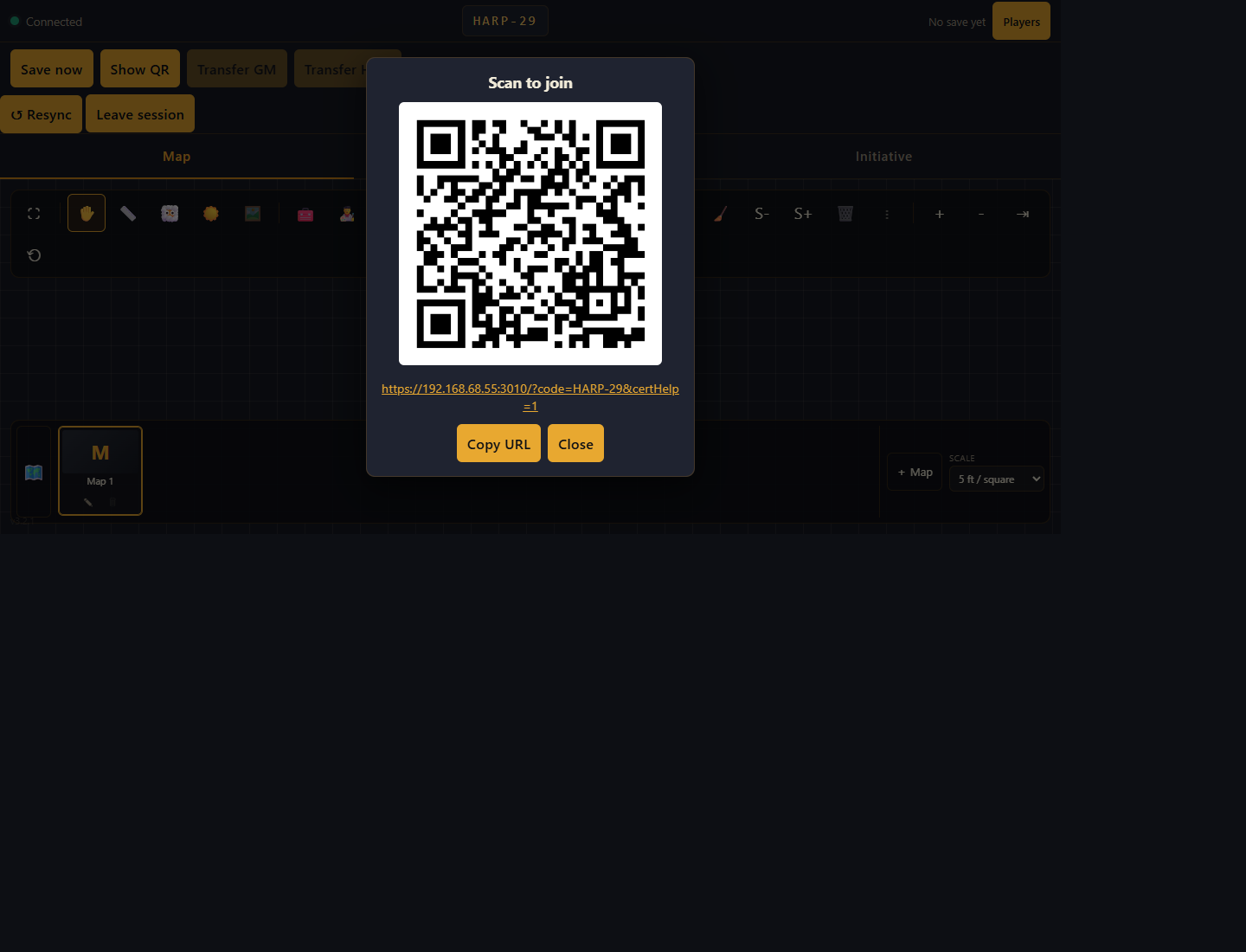
- Invite players: click Show QR in the top menu so players can scan and join from phones/tablets, or share the 4-letter Session Code plus the host IP/URL shown on the start screen.
Join a game (Players — no install needed)
Anything with a modern browser works: phone, tablet, or laptop.
- Connect your phone/tablet/laptop to the same Wi-Fi as the GM.
- Scan the GM’s QR code or open the URL they share (e.g.
https://192.168.1.x:3000/?certHelp=1). - Accept the one-time self-signed certificate warning (Chrome: Advanced → Proceed; Safari on iPhone/iPad: Show Details → visit this website). This appears because the app hosts its own local HTTPS certificate — it never leaves your home network.
- Enter your name, pick a token color, enter the Session Code if prompted — you’re in.
- Optional: use the browser’s Install app / Add to Home Screen prompt to install it as an app for quick access next session.
Explore the features
You're playing — everything past this point is stuff to discover at your own pace. Scroll through and try whatever sounds fun at your next session.
The Map
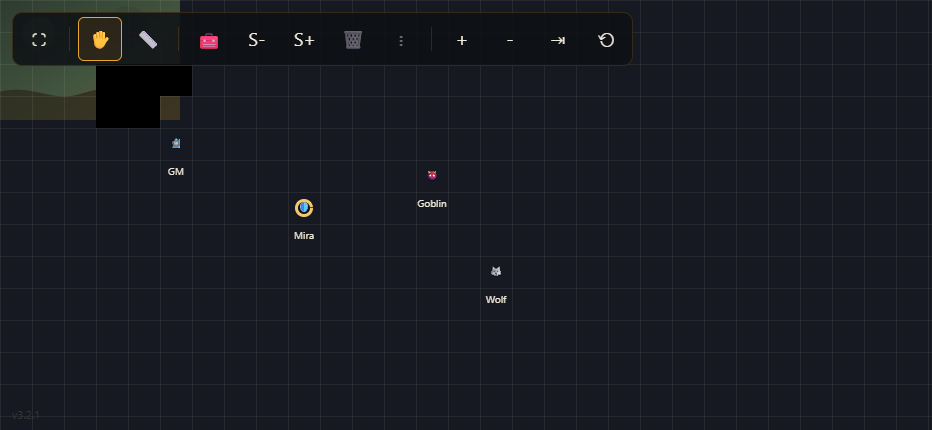
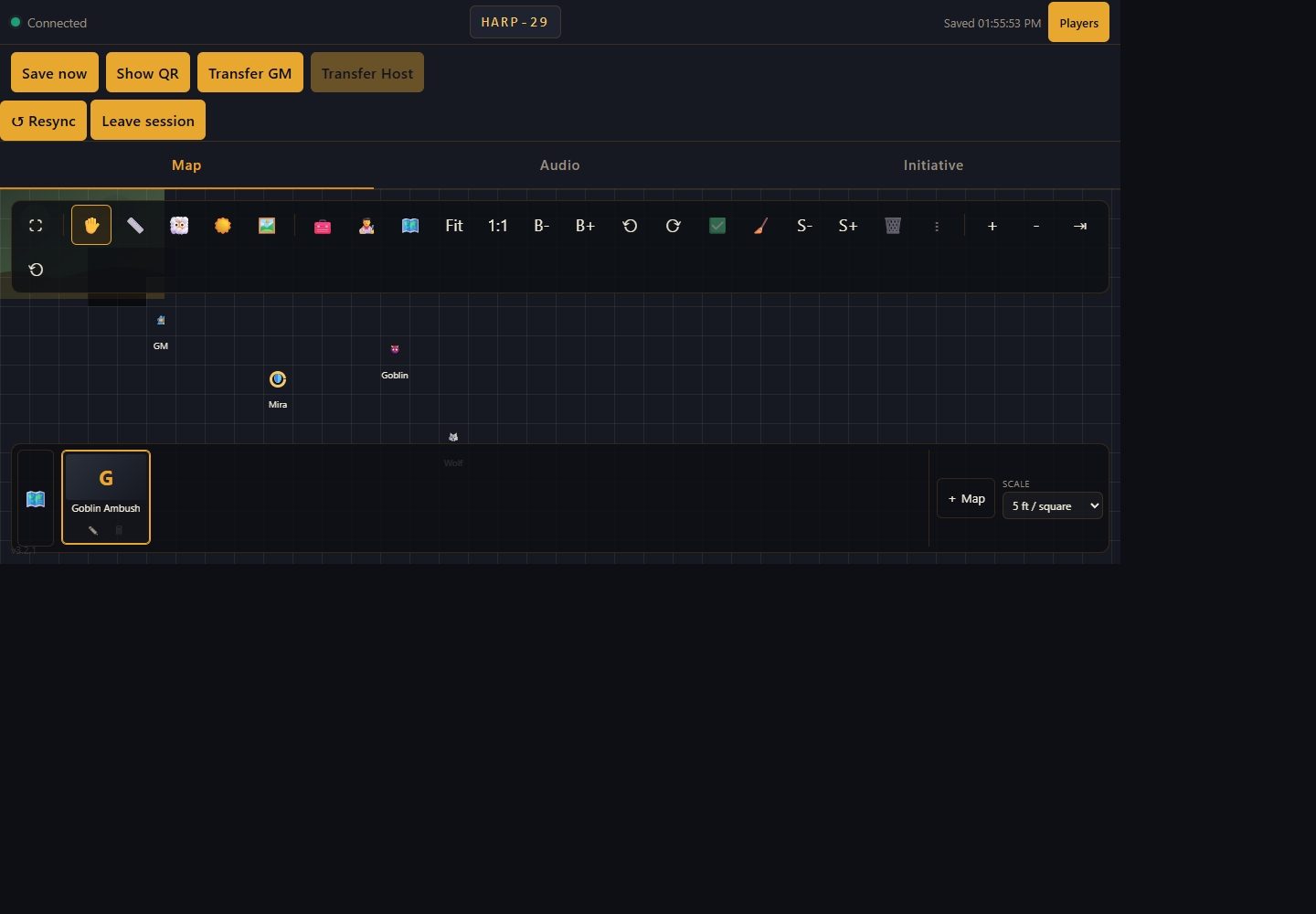
A shared real-time tactical grid everyone sees at once. Pan around, move tokens, measure distance, hide areas behind fog of war, switch between multiple maps, and load custom backgrounds.
Audio
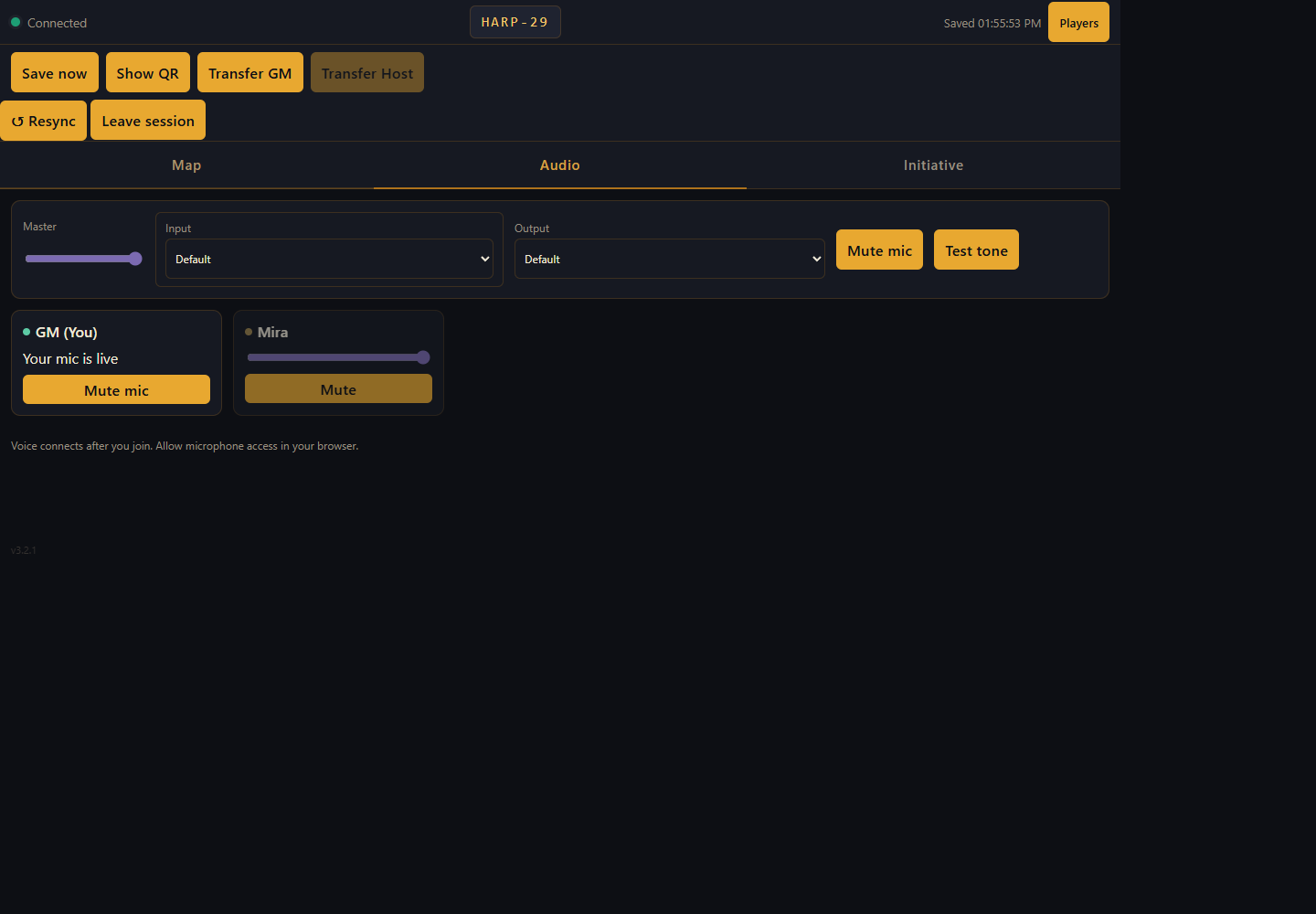
LAN voice chat between devices using device microphones — put on a headset and cut out the background noise at the table.
Initiative
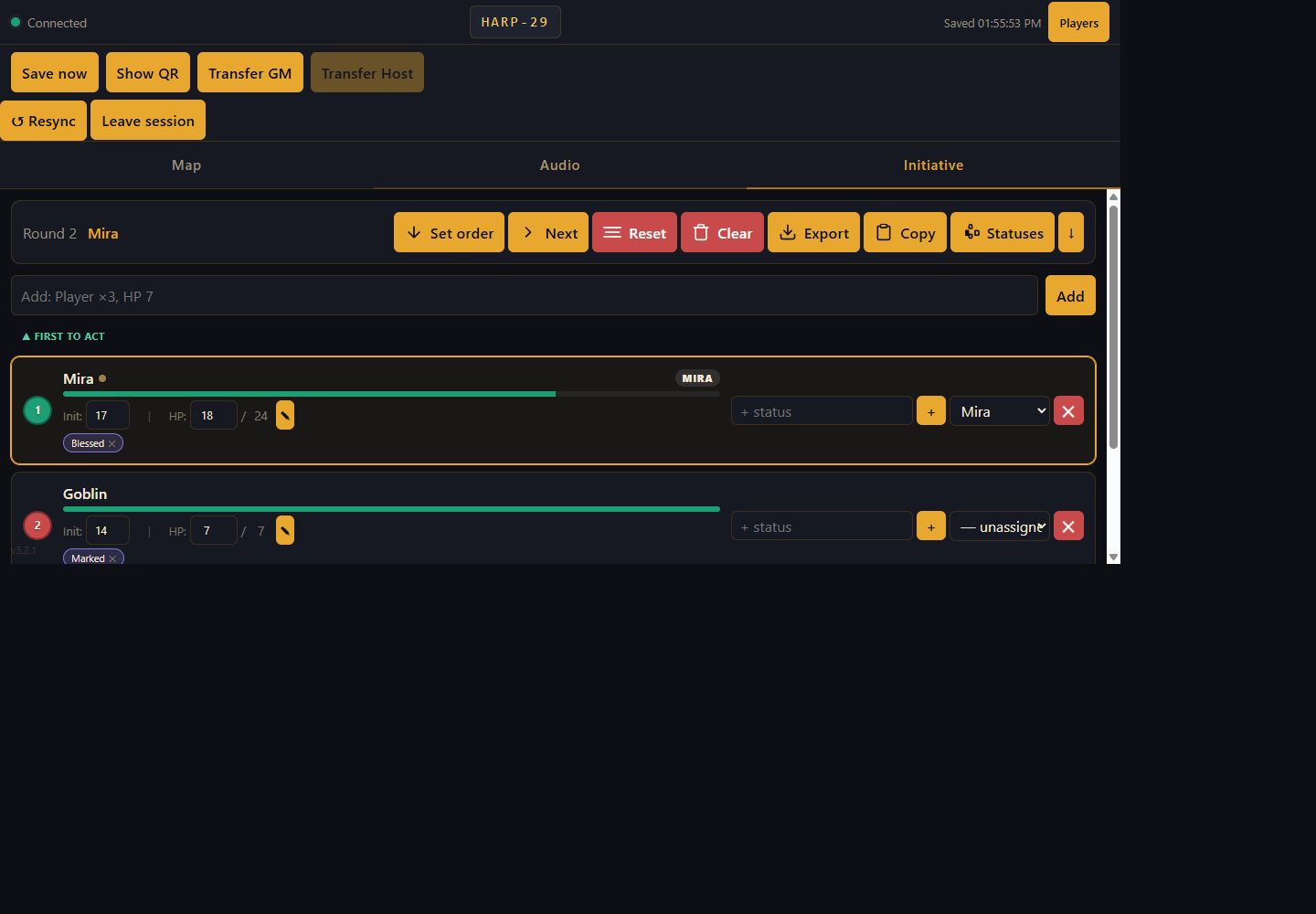
A combat tracker for turn order and hit points, so nobody has to ask "wait, whose turn is it?" mid-fight.
GM Session Controls
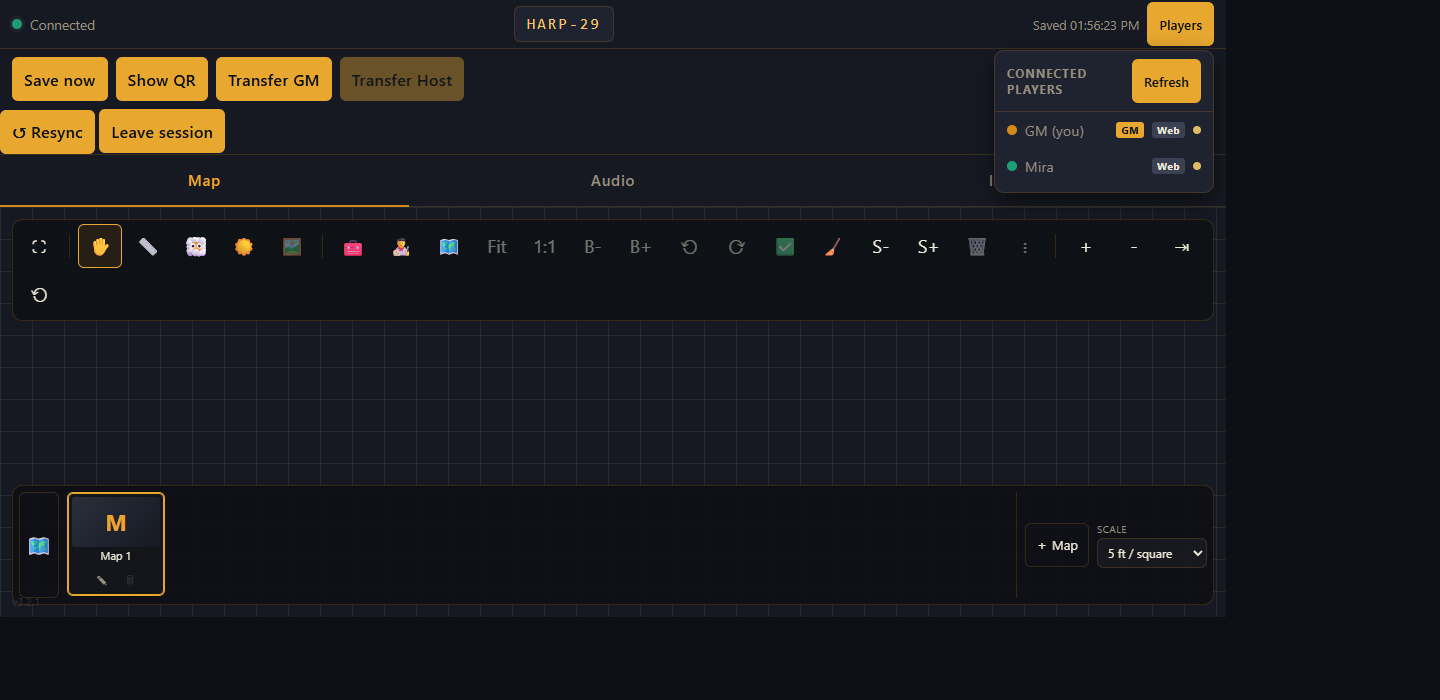
Save and auto-save your session, transfer the GM role or the host to another machine, and keep an eye on the player list.
Mobile / Fullscreen mode
Maximize map space on phones and tablets — hide the browser chrome and give the battle grid the whole screen.